Listen to the HF bands from Andalusia, live in your browser
This is the receiver of amateur radio station EA7LHS, in the south of Spain (locator IM77ve). A small software-defined radio picks up a slice of the shortwave spectrum and sends it to you: you see the band as a waterfall and listen to whatever you tune, as if you were sitting at the radio.
Nothing to install, no account needed, and it's free. It only listens: the station never transmits from this page.
OPEN THE RECEIVER01 Start in four steps
- Open the receiver at sdr.ea7lhs.com.
- Press START LISTENING. The waterfall starts moving within a second and the sound comes on. The speaker at the top right mutes and unmutes it.
- Click a signal on the waterfall to tune to it.
- Pick the mode by clicking the mode label on the VFO (LSB ▾): voice on 80 and 40 m is LSB, above 10 MHz it's USB.
02 The screen
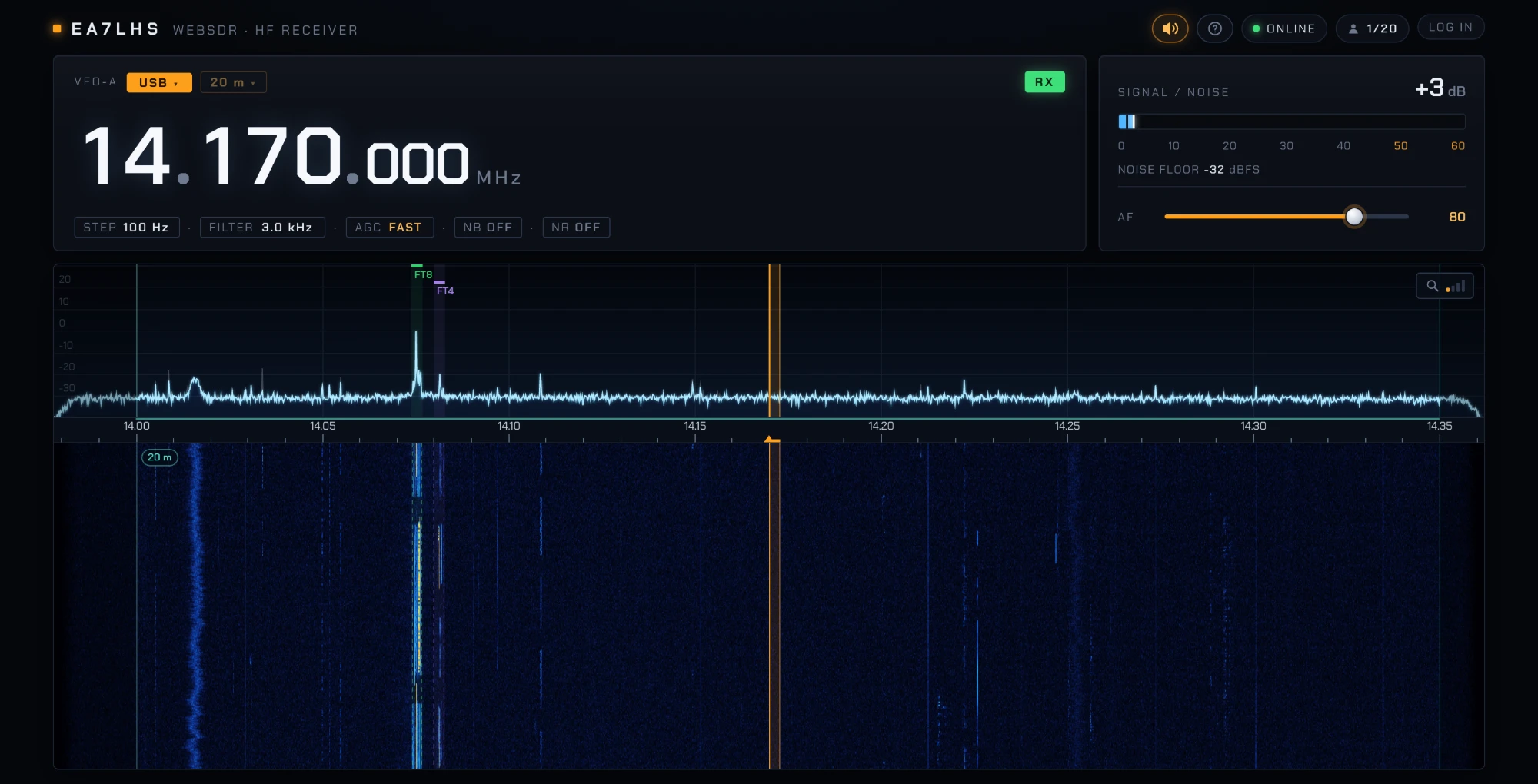
- VFO
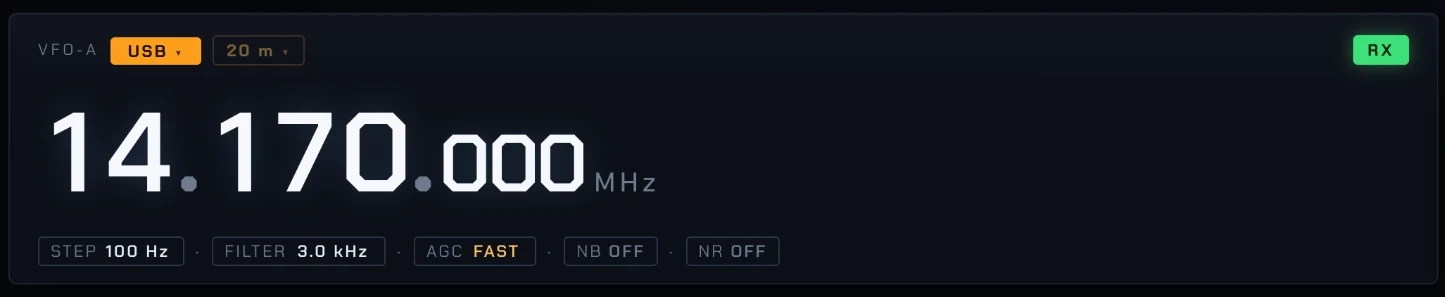
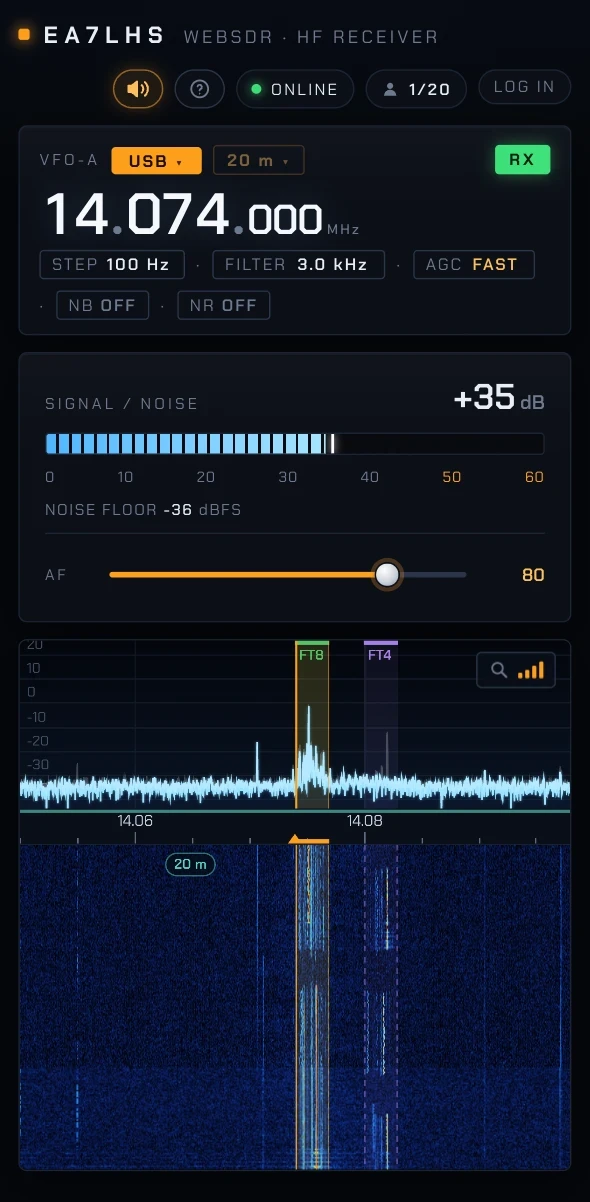
- The big frequency display: what you're listening to, with the mode and the controls for step, filter, AGC and noise reduction below it.
- Signal / noise
- How far the signal you're tuned to rises above the band's noise, in dB, and your own volume (AF).
- Spectrum
- The live signal level across the whole slice of band, with the frequency scale under it.
- Waterfall
- The same spectrum over time: every line is a moment, newest at the top. Signals show up as bright traces.
- Top bar
- The speaker (mute / unmute), the connection lamp (ONLINE) and how many people are listening right now.
03 Tuning
- Click the waterfall or the spectrum to tune there. Hovering shows the frequency on the scale.
- Scroll over the waterfall to move one step at a time (hold Shift for ten).
- On the VFO, click the upper half of a digit to raise it and the lower half to lower it, or scroll over it.
- Type a frequency: click MHz, or just start typing a number. Both
7.150(MHz) and7150(kHz) work; Enter tunes, Esc cancels. - STEP sets how far each click or scroll moves, from 10 Hz to 5 kHz. Your browser remembers it.
04 Your own receiver
The radio takes in a 384 kHz wide slice of one band at a time: that's everything you see on the waterfall. The station operator decides which band and where.
Inside that slice you tune wherever you like. As soon as you change the frequency, mode or a filter you get a receiver of your own: everyone else keeps hearing what they were hearing, and nothing you do affects them. Many people can listen to different stations in the same band at once.
That's why the band selector is greyed out for you: changing band means moving the radio itself. If the operator moves it and your frequency is no longer in the slice, you go back to listening to the radio's own frequency.
05 Modes and filters
Click the mode label on the VFO to choose how the signal is turned into sound.
| Mode | For | Filter widths |
|---|---|---|
| LSB | Voice below 10 MHz (160, 80, 60, 40 m) | 1.8 – 3.0 kHz |
| USB | Voice above 10 MHz, and digital modes like FT8 | 1.8 – 3.0 kHz |
| CW | Morse code, heard as a 700 Hz tone | 250 / 500 / 1000 Hz |
| AM | Broadcast stations and AM voice | 6 / 8 / 10 kHz |
| FM | Narrow FM on 10 m and CB (with automatic squelch) | 10 kHz |
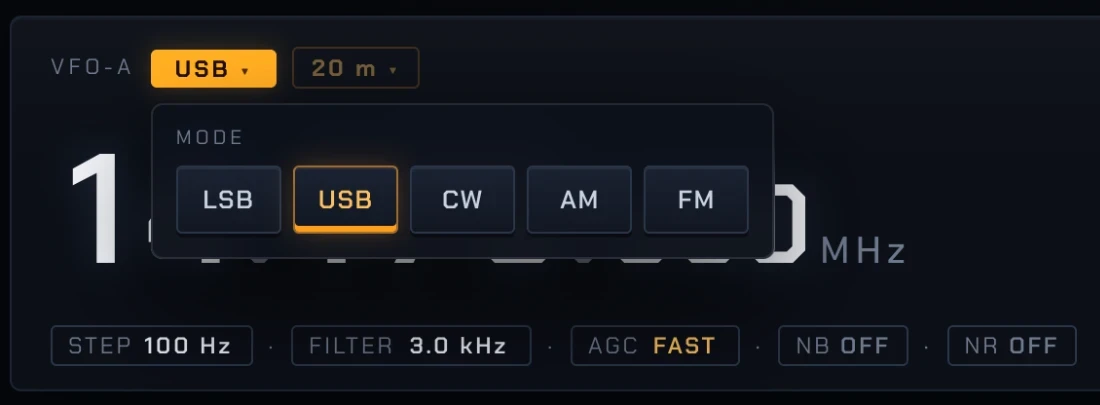
FILTER sets how wide a slice you hear; each click goes to the next width and every mode remembers its own. A narrower filter cuts out neighbouring stations and noise, a wider one sounds more natural. In SSB the filter starts at the dial frequency (above it in USB, below in LSB); in CW, AM and FM it's centred on it. The amber band on the spectrum shows exactly what you're hearing.
06 Cleaning up the audio
- AGC
- Automatic gain control keeps strong and weak stations at a similar volume. FAST reacts quickly (good for most voice), SLOW is smoother, OFF freezes the level.
- NB
- Noise blanker: removes clicks and pops from sparks, motors or electric fences. It doesn't help against steady hiss.
- NR
- Noise reduction for background hiss, from 1 (gentle) to 4 (strong). At the higher levels voices can sound a little "watery".
- AF
- Your own volume. It only changes what you hear.
07 Reading the waterfall
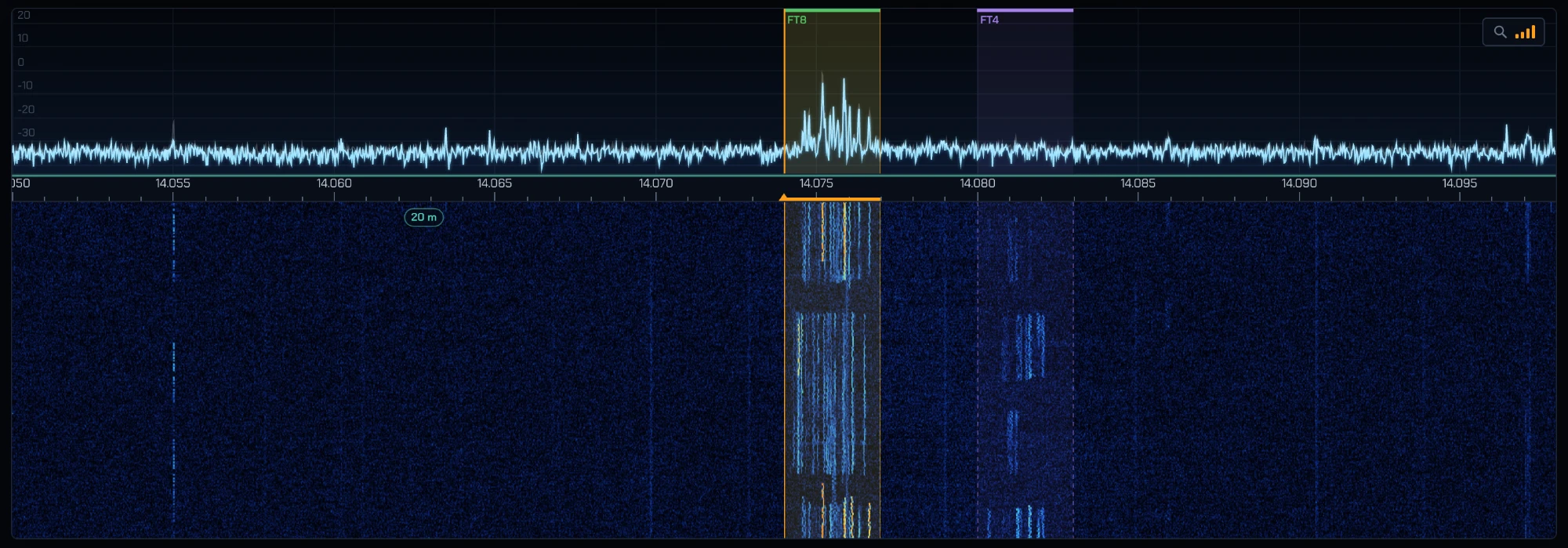
- Colours go from dark blue (just noise) through cyan and yellow to red and white for the strongest signals. The contrast adjusts itself to the band's noise.
- Band edges: the amateur bands are marked with a thin line, a turquoise strip on the scale and their name on the waterfall. Outside them it looks slightly darker. The 40 CB channels are marked the same way in pink.
- Markers on top of the spectrum show the FT8 (green) and FT4 (violet) calling frequencies, the 27.555 MHz DX frequency and the CB channels. Click a marker's label to tune straight to it, in the right mode.
- Zoom: the magnifier at the top right of the spectrum goes through four levels, from the full 384 kHz down to 48 kHz, centred on your frequency, with real extra detail (not just stretched).
- Reactions: the smiley button next to the magnifier opens a set of stickers (CQ, POTA, SOTA, 73, DX, QSB…). Pick one and it appears on everyone's waterfall at the frequency you're listening to, then falls with it. One every few seconds; HIDE REACTIONS in the same menu turns them off for you.
- Signal / noise is not calibrated in S-units: it's how many dB the signal stands above the noise floor, handy for comparing.
08 FT8 and FT4 decoding
FT8 and FT4 are digital modes: short, very weak tones that a computer decodes every 15 s (FT8) or 7.5 s (FT4). The receiver decodes them for you.
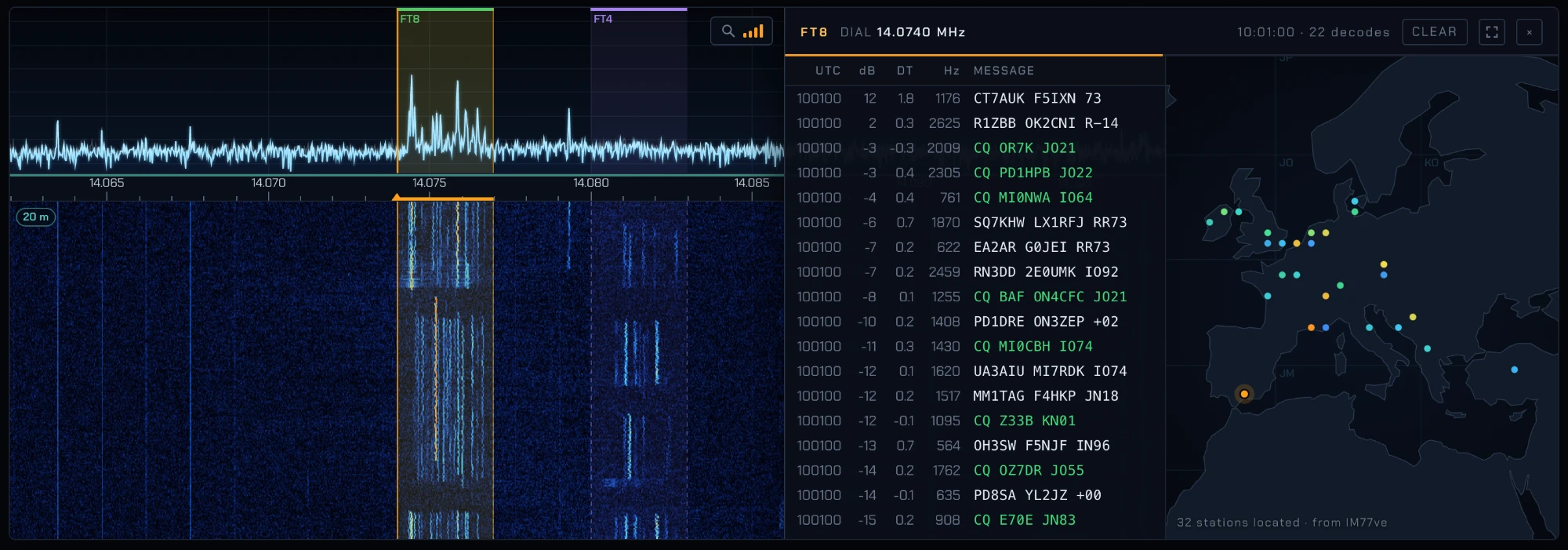
- Click a green FT8 or violet FT4 marker on the spectrum (for example 3.573, 7.074 or 14.074 MHz). The panel opens by itself and the first decodes appear at the end of the next period.
- Each line shows the time (UTC), the strength (dB), the time offset, the audio tone and the message. CQ calls are green, and every callsign links to its page on QRZ.com.
- The map plots each station whose locator is decoded, coloured by strength, with a line to the receiver for those just heard. Hover over a station or a line in the list to see who it is and how far away.
- CLEAR empties the list and the map, the corner button enlarges the panel (Esc to go back) and × hides it.
- There is one FT8 and one FT4 decoder, shared by everyone. If someone is already using it on another frequency you'll see a notice; listeners on the same frequency all see the same decodes.
09 On a phone
The receiver works on phones and tablets too. The layout stacks: VFO, meter, then the spectrum and waterfall. Tap the waterfall to tune and tap the digits of the VFO to change them.
Tap START LISTENING to begin; the sound comes on with it.
10 Sharing the receiver
- Up to 20 at a time
- If every seat is taken the page says WEBSDR FULL and tries again by itself every 30 seconds.
- 10 minutes idle
- If you don't touch the page (mouse, keyboard or screen) for 10 minutes you're disconnected to free your seat. A warning appears a minute before: just move the mouse. Afterwards, RECONNECT brings you back.
- Maintenance
- When the receiver is being worked on, an amber banner under the top bar says so: the audio may stop for a moment.
- On the air
- Now and then the station's owner transmits through this same radio. Meanwhile a red ON AIR banner says who and on which frequency, the RX lamp turns into TX, and the audio and waterfall go quiet: nothing is broken, they come back as soon as the transmission ends.
11 Keyboard shortcuts
| ← → | One step down / up |
| ↓ ↑ | Ten steps down / up |
| Scroll on the waterfall | One step (Shift: ten) |
| Type a number | Enter a frequency (MHz or kHz), Enter to tune |
| Esc | Cancel typing / restore the enlarged FT8 panel |